 One grouch I've always had with Microsoft Windows is that it doesn't display the size of a folder directly in Windows Explorer. I guess Microsoft skipped implementing this functionality due to efficiency reasons. However, the earlier versions of Windows(95/98/2000/XP) allowed you to view the size of a folder with a little shell scripting Unfortunately, this can't be done in Windows Vista and higher.
So how to we check folder sizes now? Right clicking and selecting Properties and waiting for the folder size to show up isn't the only way out any more.
You can use a nifty little application called Folder Size 2.9 to the view the sizes of all the folders on your computer.
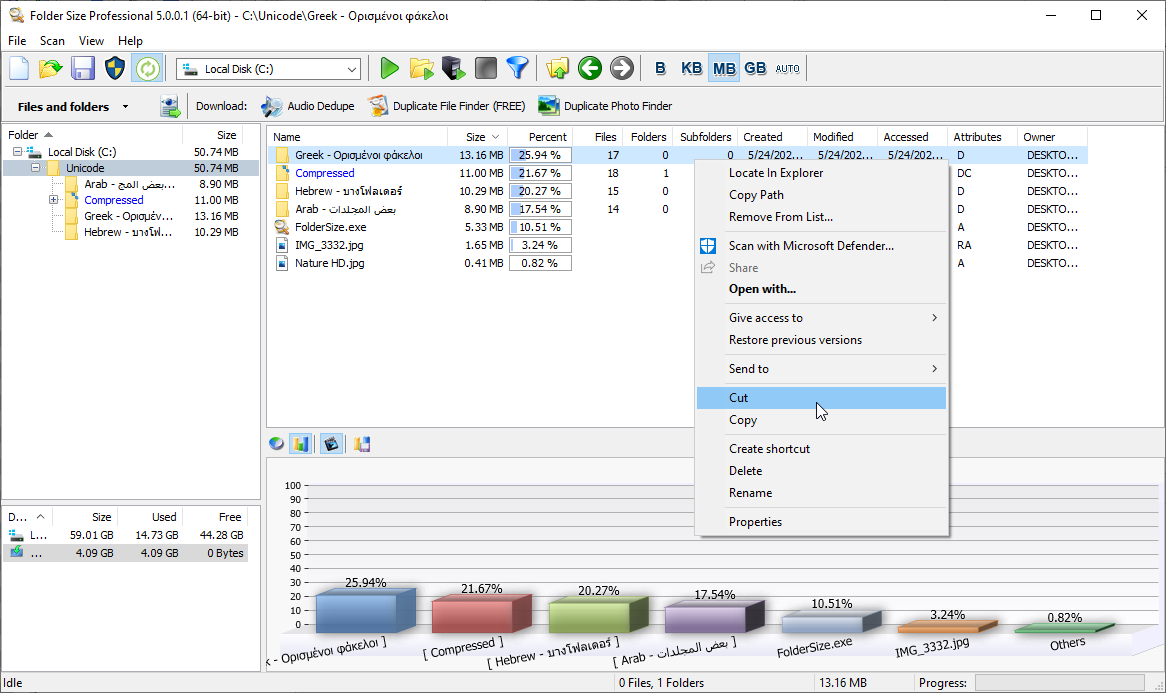
This utility will show you the exact size occupied by a folder in Bytes, Kilobytes (kB), Megabytes (MB) or Gigabytes (GB). Yes, you do have to scan the hard disk or folder you want to check out the first time, but the scanning process is pretty quick. Once the hard disk or folder has been scanned, you can view detailed information about the files and folders in it.
This utility will show the percentage each folder occupies in comparison with the other folders in the directory. A colourful pie chart or bar chart shows an illustration of the same. You can sort the everything inside any folder based on different criteria. For example, if you sort by size, you can easily see what's occupying the most amount of space.
This utility will show the percentage each folder occupies in comparison with the other folders in the directory. A colourful pie chart or bar chart shows an illustration of the same. You can sort the everything inside any folder based on different criteria. For example, if you sort by size, you can easily see what's occupying the most amount of space.
The system requirements for this software are quite minimal-
- Operating system: Windows 98 and above
- CPU: Pentium-233 MHz or higher
- 128 MB RAM
- 5 MB free hard disk space
- True Color display and video card
- Mouse or other pointing device
I highly recommended this utility especially when you're trying to free up that much needed hard disk space.


 Posts
Posts


No comments:
Post a Comment